
Summer is the season when gaming PCs start showing problems. A rig that ran perfectly through winter suddenly thermal-throttles in Cyberpunk, shuts down mid-game, or starts whining like a hairdryer because the fans are flat-out trying to cope with the extra heat. Most of the time, the PC isn’t broken — it’s just due a service.
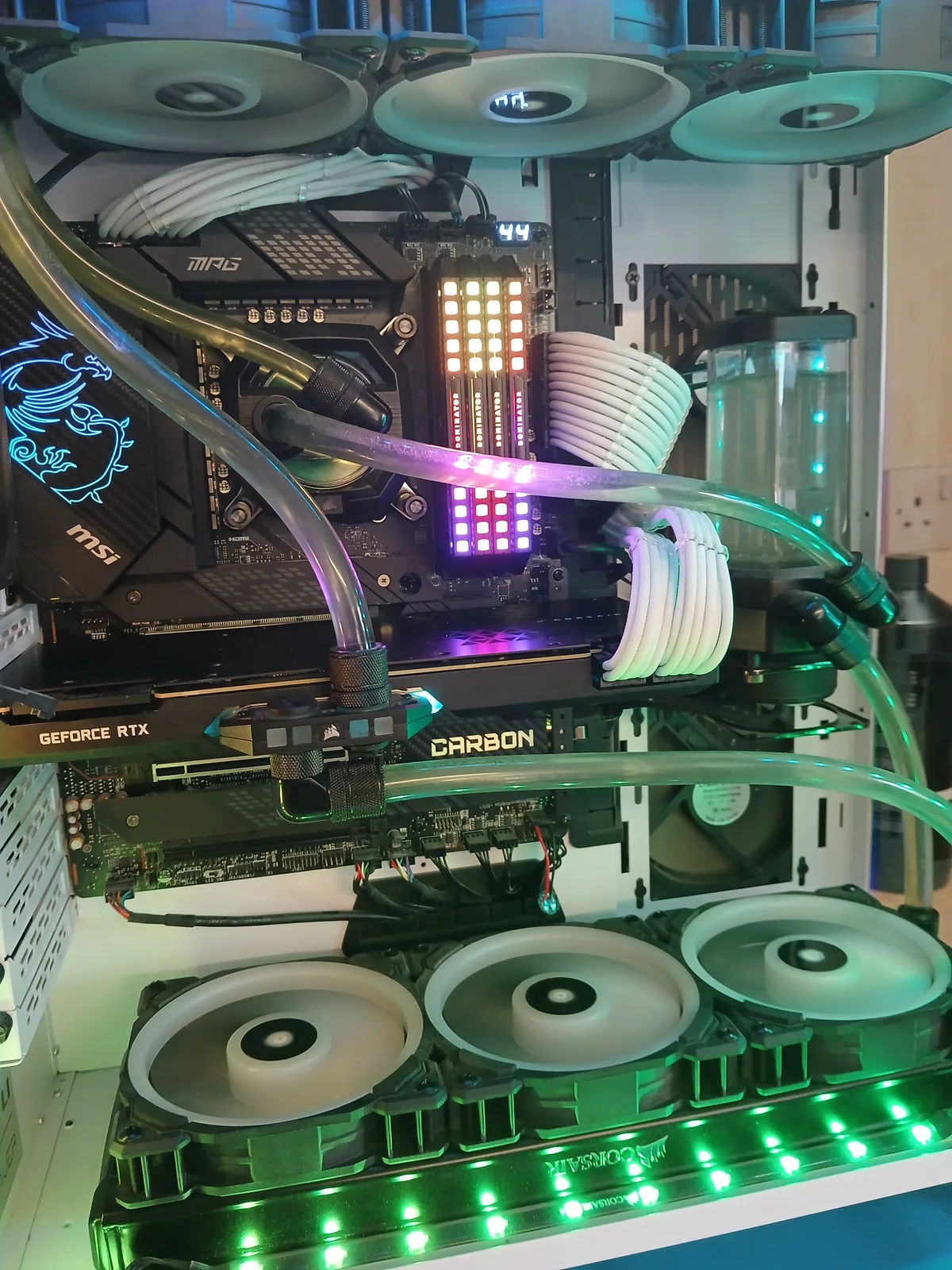
This week I had a customer’s custom-loop rig in (the photos here) for a full coolant change and CPU + GPU repaste. It’s the kind of work that gets booked solid through May, June and July every year, so I figured it’s worth writing up: what actually degrades, how to spot it before it costs you a CPU, and what a proper summer service involves.
Why Gaming PCs Struggle More in Summer
Your PC’s cooling system is sized for a target ambient temperature — usually around 20-22°C, which is what most UK rooms sit at through autumn and winter. When your office or gaming room climbs to 28°C or 30°C on a hot July afternoon, every cooling component in the case is suddenly working with less headroom.
The maths is simple but unforgiving:
- Air coolers and AIOs: CPU temperature scales roughly 1:1 with ambient. A 5°C hotter room means a 5°C hotter CPU under the same load.
- GPUs: Same story. A graphics card that ran at 72°C all winter can easily hit 82°C in summer with no other change.
- Custom water loops: The radiators dump heat into the room. Hotter room = hotter coolant = hotter CPU and GPU. They’re still better than air, but not magic.
On top of the ambient hit, the cooling components themselves quietly degrade year-round and you only notice in summer because that’s when the margin disappears. That’s why a rig you built four years ago might have had its first thermal shutdown this month — the parts didn’t fail overnight, the weather just exposed what was already happening.
Warning Signs Your PC Is Overheating
Catch these early, before you cook a CPU or pop a GPU:
- Random shutdowns or reboots during gaming, video editing, or any sustained load — especially in the afternoon when the room is hottest.
- FPS dropping mid-session when temps were fine for the first 10 minutes. That’s thermal throttling kicking in.
- Fans constantly at full speed even on the desktop or in lightweight games.
- Loud whirring or grinding from a pump (AIO or custom) — air in the loop or a pump on the way out.
- Coolant looking cloudy, brown, or with visible particles in a transparent reservoir. Healthy coolant is clear (or whatever colour you started with).
- BSODs with codes like WHEA_UNCORRECTABLE_ERROR or random MACHINE_CHECK exceptions on hot days.
- Case feels hot to touch after gaming — heat that should be exhausting out the back is sitting inside.
Don’t ignore a hard shutdown. Modern CPUs will shut the system down at around 105°C to protect themselves, but that’s an emergency stop, not a comfortable temperature. Repeated thermal shutdowns shorten silicon lifespan and can damage adjacent components. If it’s happened once, get it looked at.
Why Coolant Needs Changing
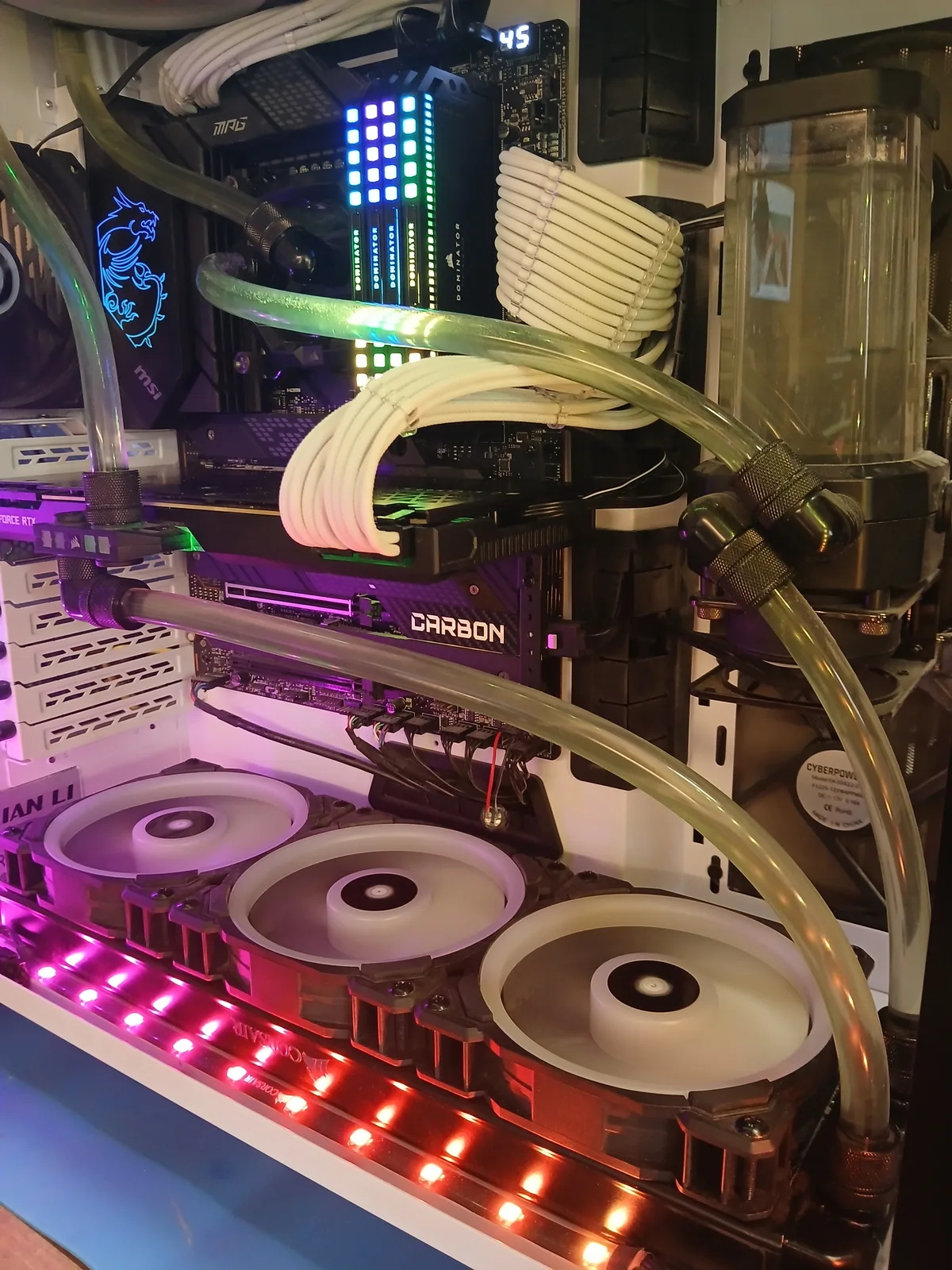
Coolant in a custom loop isn’t just water — it’s a mix of distilled water, corrosion inhibitors, biocide, and (often) dye. All four of those things have a shelf life:
- Corrosion inhibitor depletes as it does its job protecting copper and nickel surfaces inside your CPU and GPU water blocks. Once it’s gone, the metal starts oxidising — and the resulting particles end up in your radiators.
- Biocide breaks down over time. When it does, algae and biological gunk start growing in the loop, especially on warmer summer days. You end up with the dreaded "green slime" that blocks micro-fins in the GPU block.
- Dye fades and separates — purely cosmetic, but if your once-blue coolant is now a sad grey, the rest of the chemistry has aged with it.
- Plasticisers leach from soft tubing and form a white film inside the blocks. Soft tubing is convenient but it’s the most common cause of restricted flow on older custom loops.
Once flow drops, the temperature delta across the loop rises, and your CPU and GPU both run hotter despite all that expensive copper sitting on top of them. A coolant change is cheap insurance against losing a £600 GPU water block to corrosion or a £400 CPU to a heat-soaked shutdown.
Why Thermal Paste Wears Out
Thermal paste fills the microscopic gaps between the CPU/GPU die (or its heat spreader) and the cooler. Without it, only a tiny fraction of those surfaces are actually touching, and heat transfer falls off a cliff.
The two ways paste fails:
- Drying out: Stock thermal paste — the grey stuff that comes pre-applied on most coolers — typically lasts 2-3 years before it dries to a chalky crust. Premium pastes (Kryonaut, Arctic MX-6, Noctua NT-H2) last 4-6 years before you notice the same drop.
- Pump-out: Repeated heating and cooling cycles can squeeze paste out from the centre of the die where it’s most needed. This is especially common on hot-running CPUs (13900K, 14900K, 7950X) and on GPUs that go through long gaming sessions and full power-down cycles.
Symptoms are usually creeping: temps were fine, then a couple of degrees higher month over month, then suddenly summer hits and the CPU is throttling at 95°C in games it ran cool in last year. A repaste with a quality compound usually drops temps anywhere from 5°C to 15°C — sometimes more on older systems where the original paste is genuinely fossilised.
Quick check: if your CPU is more than 3 years old and you’ve never had it repasted, it’s due. Same for GPUs older than 4 years. The paste isn’t a "last forever" component, even though most people treat it like one.
What a Summer Cooling Service Includes
When a gaming PC comes in for a summer service in my workshop in Harold Hill, here’s what I actually do:
1. Strip and Inspect
Disconnect everything, take the cooler/water blocks off, check for any obvious damage, swollen capacitors, or worn fan bearings. I’ll flag anything that looks iffy before I touch the parts you came in for.
2. Deep Clean
Compressed air and brushes through every fan, radiator, heatsink and dust filter. Dust is a thermal blanket — even a thin layer on a radiator can cost you 5-10°C. Filters get washed and dried separately.
3. Coolant Drain & Flush (water-cooled rigs)
Drain the loop completely, flush with distilled water until it runs clear, check every fitting for leaks, refill with fresh quality coolant. For pre-mix loops I use EK CryoFuel or Mayhems X1; for custom mixes I use distilled water plus an inhibitor/biocide concentrate. Bleed the loop and run for 30 minutes minimum to confirm no air bubbles or weeping fittings.
4. CPU & GPU Repaste
Old paste cleaned off with isopropyl alcohol, surfaces inspected (sometimes polished if the original paste was really baked on), fresh paste applied — usually Thermal Grizzly Kryonaut or Arctic MX-6, depending on the part. For high-end CPUs running hot under load, I’ll sometimes recommend liquid metal, but only on non-aluminium cold-plates and only with proper guard putty.
5. Reassemble & Cable Tidy
Everything goes back exactly the way it came out (or tidier — cable management often gets a free upgrade while I’m in there). Fan curves checked, BIOS settings reviewed, anything that was wrong gets put right.
6. Stress Test & Verify
Cinebench R23 multi-core for 20 minutes to load the CPU. FurMark or 3DMark Time Spy stress run for the GPU. I monitor temps the whole way through and won’t hand the machine back until the load temperatures are sensible — usually CPU under 80°C and GPU under 75°C, even with the workshop warm. Before/after temps written on the invoice so you can see exactly what the service achieved.
DIY or Bring It to Me?
Repasting an air-cooled CPU is a reasonable DIY job if you’re comfortable inside a PC — there are good guides online and the worst case is you do it again. But there are jobs where the cost of a mistake is high enough that paying for a professional service makes sense:
- Custom water loops — one missed O-ring or over-tightened fitting and you’re draining coolant onto your motherboard. Insurance and experience matter here.
- GPU repastes — modern cards have fragile thermal pads on memory and VRMs that need replacing as well as the die paste. Get this wrong and the card throttles or fails.
- High-end CPUs with direct-die or liquid metal — the margin for error is smaller and the parts are expensive.
- Anything still under warranty — DIY can void it; many manufacturers accept work by a registered repair business.
If you’re local in Romford, Harold Hill, Hornchurch, Upminster, Dagenham or anywhere in Havering, drop your rig in or I can collect. Most coolant changes and repastes are same-day or next-day turnaround. Photos before and after, before/after thermal results, and an honest "this is what I found" debrief on collection — no upsell, no pressure.
Frequently Asked Questions
Get Ahead of the Summer Heat
Booking a service now — before the first proper hot week — saves you scrambling when your rig starts shutting down mid-raid in July. Slots fill up fast through May and June and the workshop is busiest of the year August onward. If your gaming PC is more than 2-3 years old and hasn’t had a coolant change or repaste yet, this is the year.
Gaming PC builder and computer repair specialist at Chiltern Computers in Harold Hill. I service custom water-cooled rigs, AIO systems and air-cooled gaming PCs across Romford and Havering — coolant changes, repastes, dust strips, and full thermal diagnostics with before-and-after temps on the invoice.
Book Your Summer Cooling Service
Coolant changes, CPU and GPU repaste, full thermal service for gaming PCs in Romford, Harold Hill and across Havering. Same-day turnaround on most jobs. Before/after temps on every invoice.
Book a Repair